 Open Outlook. Open Outlook.
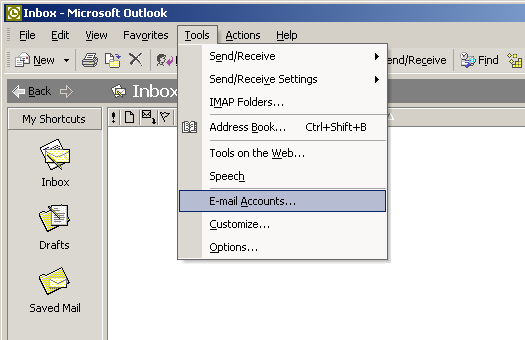
Click on "Tools", then "E-mail Accounts" at the top of the window. The E-mail Accounts tab may not show immediately, click on the arrows in the drop down part to expose the rest of the tabs.
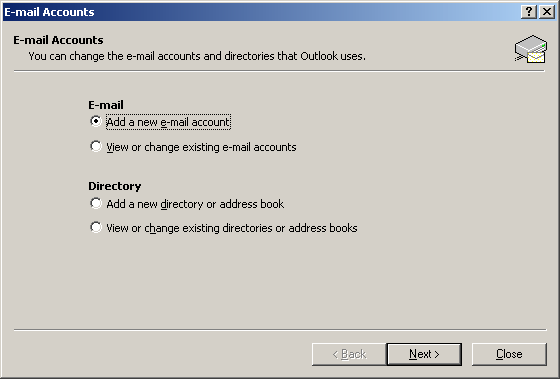
Choose "Add a new e-mail account" and click "Next".
Select "POP3" and click "Next".

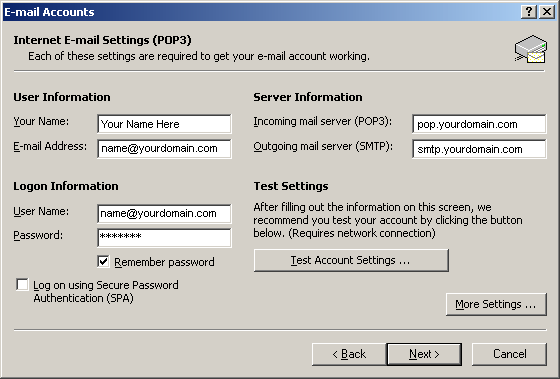
Enter your name in the "Your Name" field.
Enter your email address in the "E-mail Address" field.
Enter "pop.yourdomain.com" in the "Incoming mail server (POP3)" field.
Enter "smtp.yourdomain.com" in the "Outgoing mail server (SMTP)" field.
Type in your email address in the "User Name" field.
Type in your password in the "Password" field.
Check the box "Remember password".
Click the "More Settings..." button.
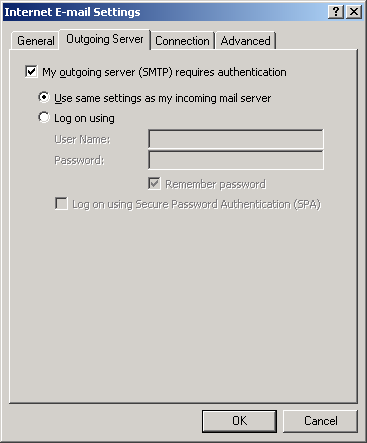
Go to the "Outgoing Server" tab.
Check "My outgoing server (SMTP) requires authentication".
Click "Use same settings as my incoming mail server".
Click "OK".
Click "More Settings" again.
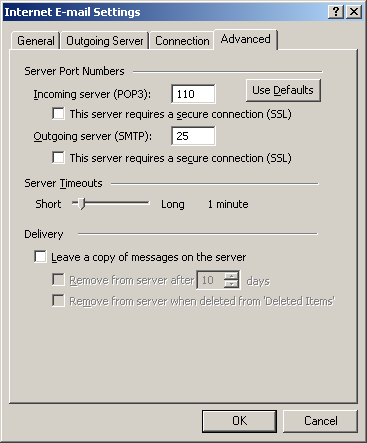
Go to the "Advanced" tab.
Change the "Outgoing server" port setting from 25 to 26.
Click "OK".
Click "Next".
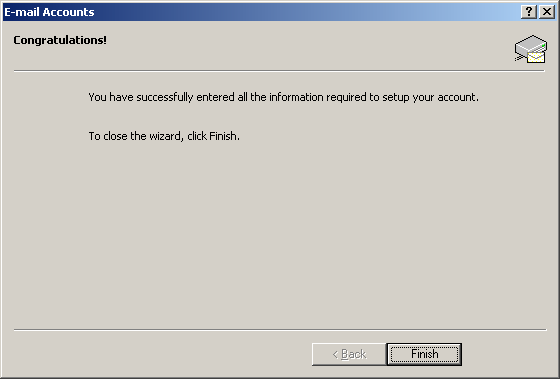
Click "Finish".
|







 Back
Back