Some ISP's block the SMTP Relay causing outgoing messages to bounce. If you are still experiencing problems with outgoing mail after changing the port settings in the last example you may have to use you ISP's outgoing SMTP mail server settings. Please follow the instructions below.
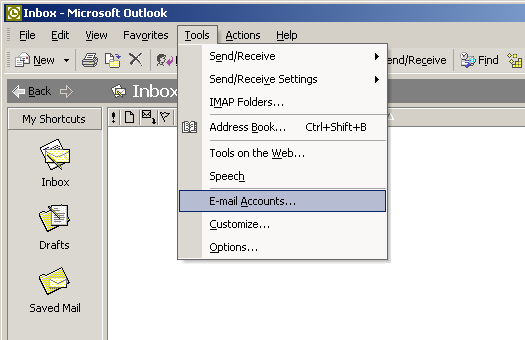
 Open Outlook. Click on Tools, then E-mail Accounts at the top of the window. The E-mail Accounts tab may not show immediately, click on the arrows in the drop down part to expose the rest of the tabs. Open Outlook. Click on Tools, then E-mail Accounts at the top of the window. The E-mail Accounts tab may not show immediately, click on the arrows in the drop down part to expose the rest of the tabs.
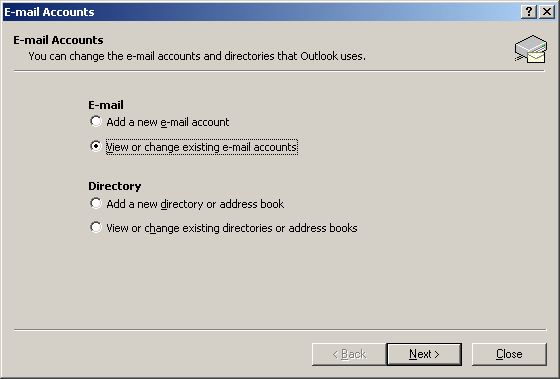
Select “View or change existing e-mail accounts” and click Next.
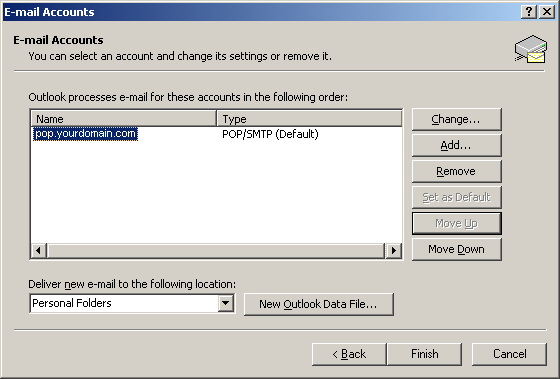
Select your account and click Change.
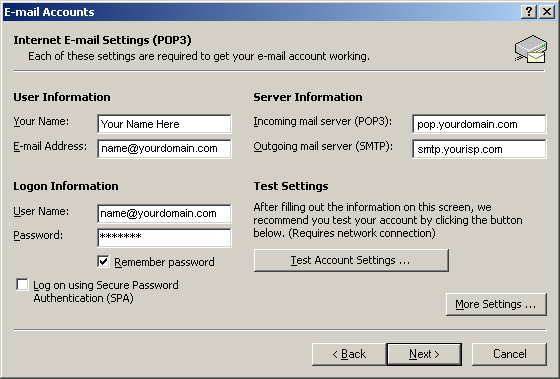
Change the SMTP Outgoing mail server settings to your current ISP SMTP settings (You may have to call your ISP to get the correct SMTP Outgoing mail server settings.
Click More Settings.
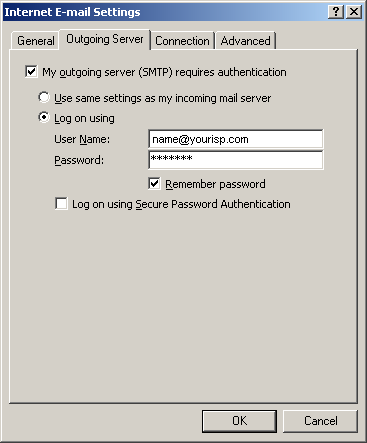
Go to the Outgoing Server tab and type in your current ISP Username & Password
Click OK
Click More Settings again.
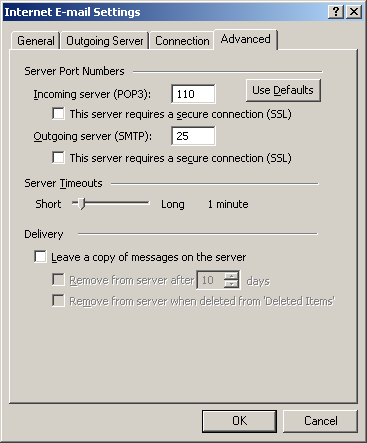
Go to the Advanced tab
Make sure the Outgoing Server Port setting is set to 25 since you are going to be using your ISP.
Click OK
Click Next.
Click Finish and try to send messages again.
If you are still having problems, reboot your computer and try sending email again.
|







 Back
Back