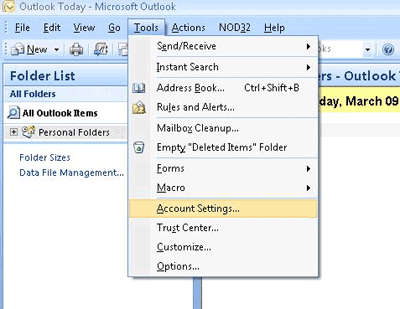
 In the Menu bar click on "Tools" and then "Account Settings". In the Menu bar click on "Tools" and then "Account Settings".
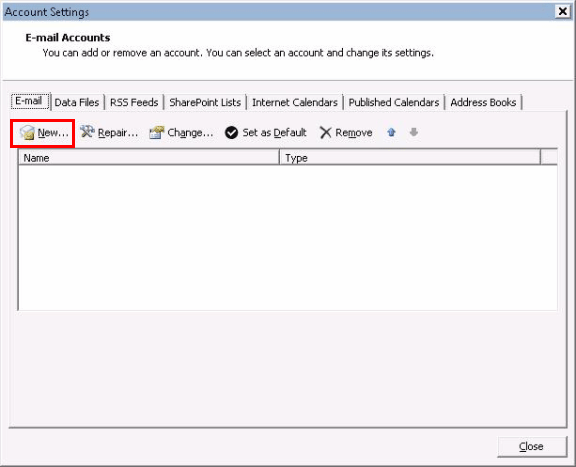
Click on the "New" button under the "E-mail" tab.
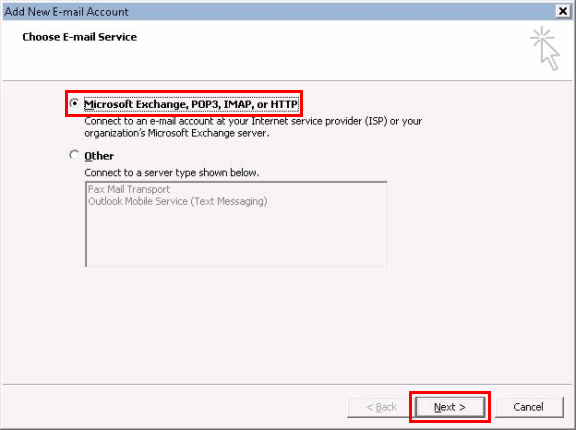
Select the option "Microsoft Exchange, POP3, IMAP, or HTTP" and click the "Next" button.
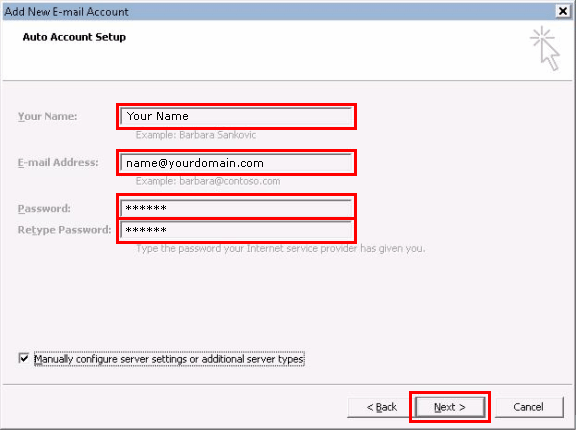
Type your name in the "Your Name" field.
Enter your email address i.e: name@yourdomain.com in the "E-mail Address" field.
Type in your password in the "Password" field.
Type in your password in the "Retype Password" field.
Check the box to "Manually configure server settings or additional server types".
Click the "Next" button.
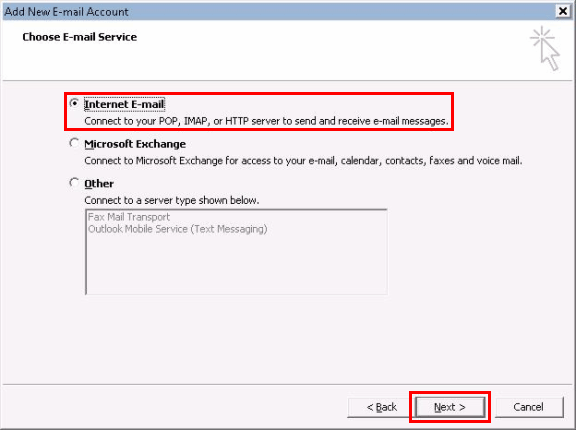
Select the option "Internet E-mail".
Click "Next".
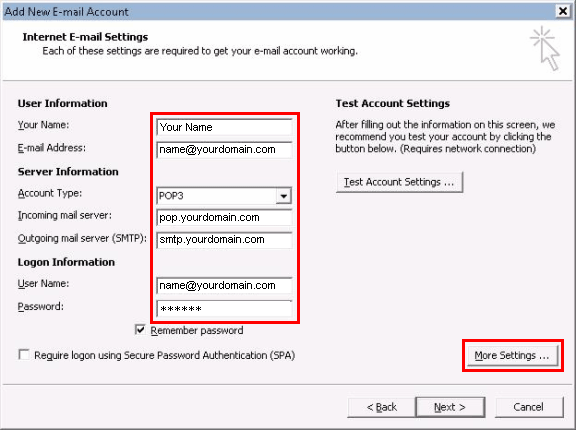
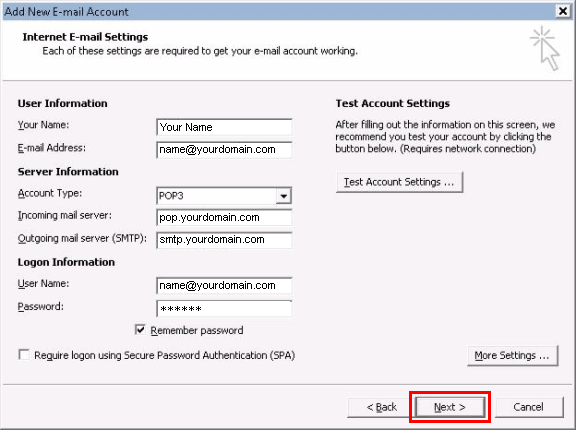
Enter your name in the "Your Name" field.
Type in your email address in the "E-mail Address" field.
"Account Type" is a "POP3".
Type in "pop.yourdomain.com" in the "Incoming mail server" field.
Type in "smtp.yourdomain.com" in the "Outgoing mail server" field.
Enter your email address i.e. name@yourdomain.com in the "User Name" field .
Type in your password in the "Password" field.
Click the "More Settings..." button.
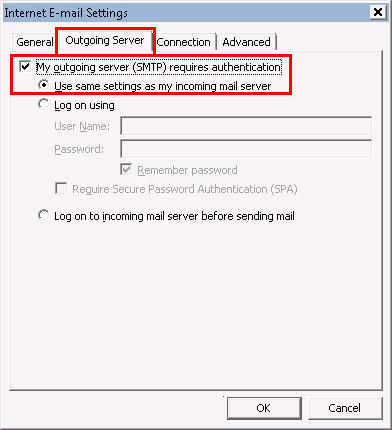
Click on the "Outgoing Server" tab.
Click the box to check "My outgoing server (SMTP) requires authentication".
Click the option "Use settings as my incoming mail server".
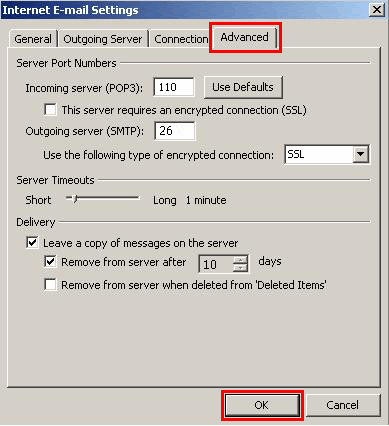
Click on the "Advanced" tab.
In the "Outgoing Server (SMTP)", type "26" in the field box.
Click "OK".
This will return you to the Internet E-mail Settings window. Click the "Next" button.
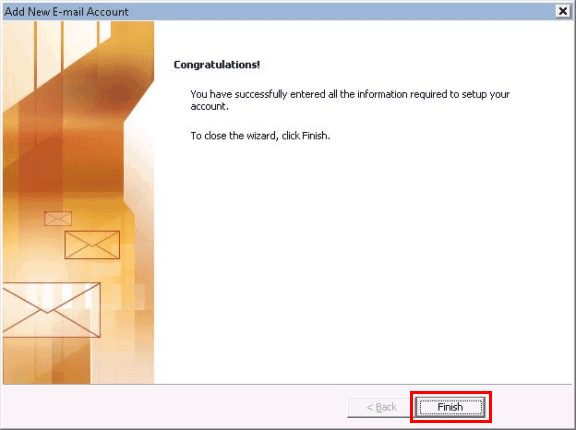
Click "Finish".
|







 Back
Back