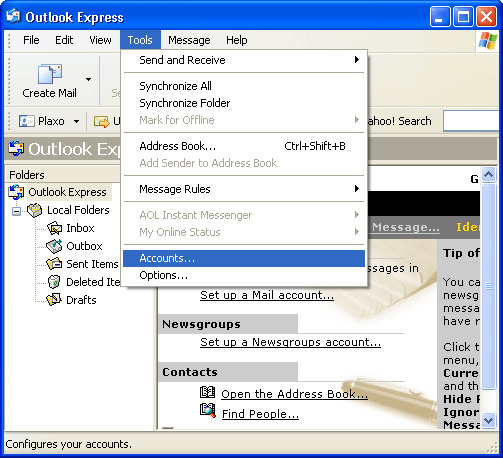
 In the Menu bar click on "Tools" and then "Accounts". In the Menu bar click on "Tools" and then "Accounts".
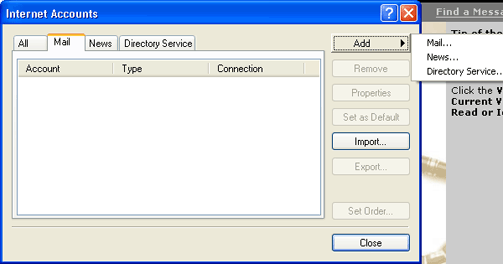
Click on the "Mail" tab.
Click on the "Add" button and then "Mail".
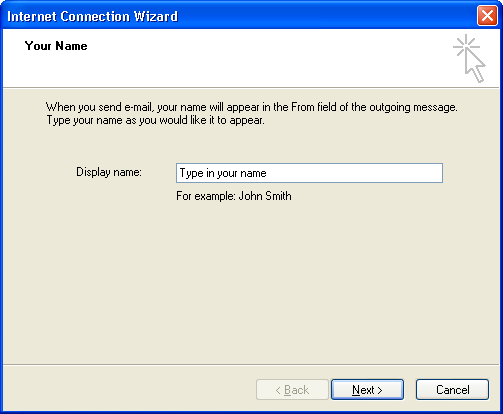
Type your name in the "Display name" field.
Click the "Next" button.
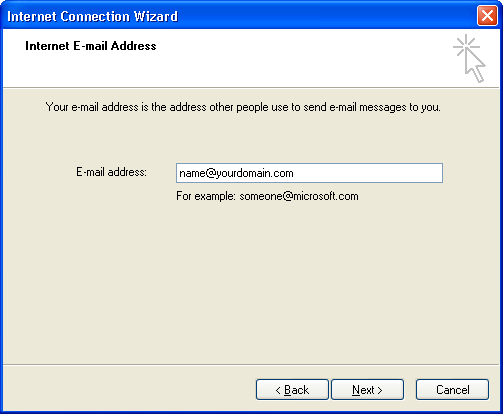
Enter your email address in the "E-mail address" field.
Click the "Next" button.
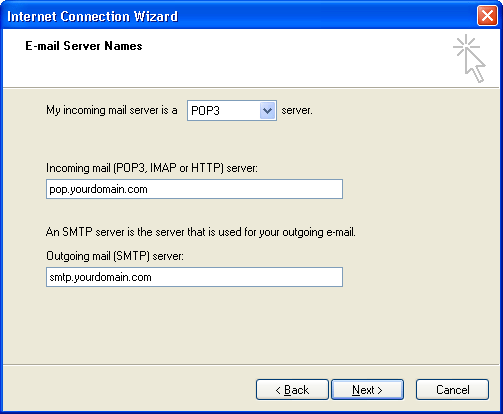
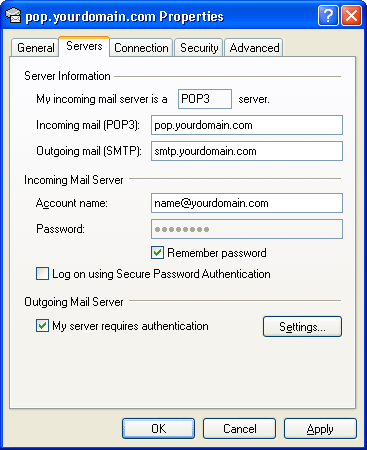
My incoming mail server is a "POP3"
Enter pop.yourdomain.com in the "Incoming Mail server" field.
Enter smtp.yourdomain.com in the "Outgoing Mail (SMTP) server" field.
Click the "Next" button.
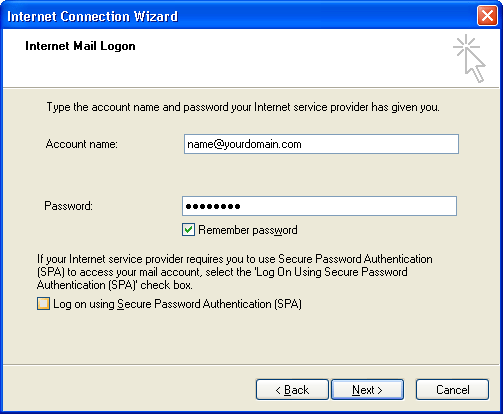
Enter your email address in the "Account name" field.
Enter your password in the "Password" field.
Click the "Next" button.
You may be prompted for the following:
Internet Mail Account Name: Your can name this whatever you would like. It can always be changed later.
Choose your connection type depending on your connection method.
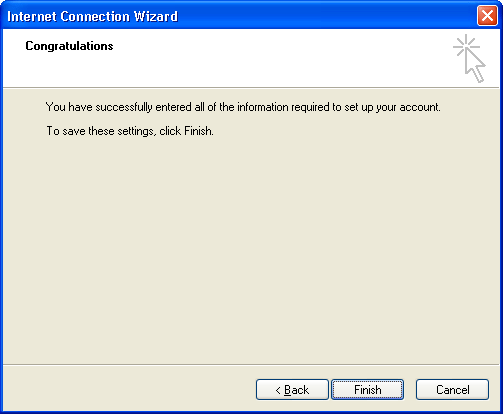
Click the "Finish" button.
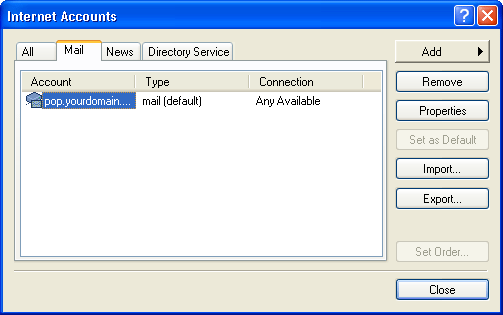
Click the "Mail" tab.
Highlight the account name.
Click on the "Properties" button.
Click on the Servers tab.
Check the box "My Server Requires Authentication".
Click "Apply" at the bottom.
Click the "Settings" button at the bottom.
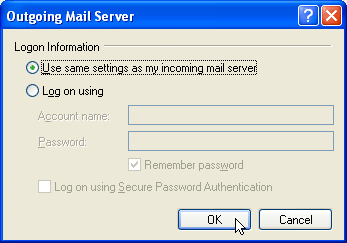
Check the box "Use same settings as my incoming mail server".
Click "OK".
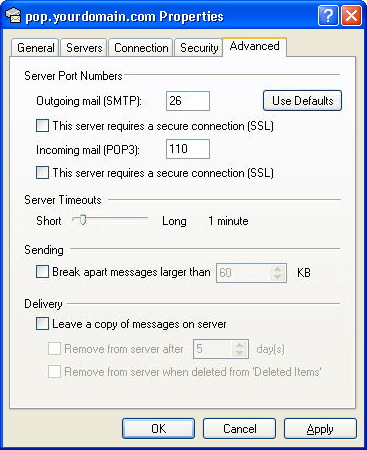
Click on the "Advanced" tab.
In the "Outgoing mail (SMTP)", type "26" in the field box.
Click "OK".
Click "Close" to close the Internet Accounts box.
|







 Back
Back