Microsoft FrontPage is a WYSIWYG (what you see is what you get) web building program. If you use, or plan to use FrontPage to build and manage your website you must be sure to indicate this when opening your account. FrontPage requires special "extensions" installed on the server. If you do not have a FrontPage Account, you will need to contact us to have your account modified before your FrontPage Web will work.
NOTE: IT IS RECOMMENDED THAT YOU MAKE SUBDIRECTORYS AND NOT STORE ALL FILES IN THE WWW DIRECTORY. FOR EXAMPLE ALL IMAGES CAN GO IN A IMAGE OR GRAPHICS SUBDIRECTORY.
Publishing Your FrontPage Web
After you have built your web pages on your computer, you will be ready to publish them. Basically, this just means that you will upload them to our server. Once this is done, your pages will be viewable from the web. However, you must do this in the following manner. Warning: FrontPage Account holders should never use FTP to transfer files as it can damage the FrontPage extensions.
1. Launch Microsoft FrontPage
2. From the menu at the top of the window, select File, then Publish Web
3. If this is the first time you publish to our server, select More Webs and enter the location you want to publish your FrontPage web to. (www.yourdomain.com) Hit Return (Enter) on your keyboard.
Note: If you have published to the server before, your "Destination Web Server" (www.yourdomain.com) will appear in the Publish window.
IMPORTANT: Use yourdomain.com as the Destination Web Server to publish to our server. Leave the "Destination Web Name" blank.
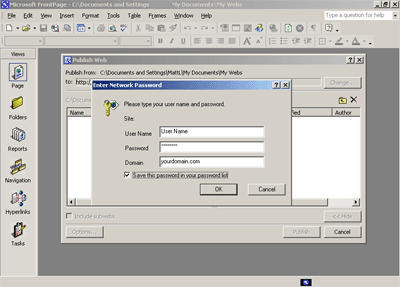
4. You will be asked for your USERNAME and PASSWORD. This is your domain's User ID and your FrontPage Password (which may be different than your regular SSH/FTP/POP password). If you're not sure what it is or if you aren't allowed past this point, you'll need to contact us for a new FrontPage password. You will also need to enter your domain name in the appropriate field.
5. You will then be connect to the server and are ready to publish your Front Page Web.
Left Window
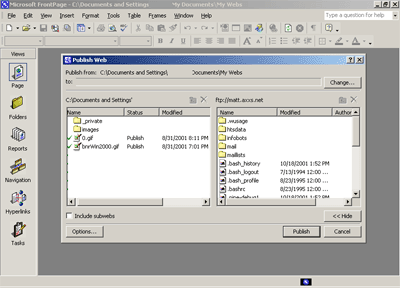
Once you connect to Front Page you will see two windows. The window on the left is your local web. This should be pointing to the folder on your local computer that stores your website. If this is not the case, please refer the the Front Page help file.
Right Window:
The window on the right will contain the folders and files contained within your home directory. This is your space on the server. This is where you will place your website. You will see folders with names such as www, infobots and access-log.
6. You are now ready to select the Publish button and publish your website to the www directory on the server.
Open Your Published Web
Once your FrontPage Web is published and online, you will need to access it to make updates and changes. Be sure that you are connected to the internet before attempting to open your web on our server
1. Open FrontPage Explorer and choose File > Open FrontPage Web.
2. You can now choose to open a previously created web on your PC or your web on our server.
3. Highlight the appropriate web or type in the web address (www.yourdomain.com) and click OK.
4. Enter your Username and FrontPage Password if required.
5. Make modifications and recalculate links if needed. (See your FrontPage Manual for info on when it's necessary to recalculate links.)
Troubleshooting Common Problems with FP 00/02
The following are common problems and solutions encountered with using FrontPage 00/02. If you are having a problem not listed here, please feel free to contact support for help. Or, refer to your Front Page manual provided with the software.
Getting error - "Root Web Busy"
FTP or SSH to your site and remove the "service.lck" file in /www/_vti_pvt. This usually happens when a FrontPage session is interrupted before completion.
Server times out when publishing large sites.
This difficulty arises when the uploading link times out in the process of copying the web to our server. The only suggestion Microsoft has offered so far is to break the main web into a group of sub webs on your PC, then upload these individually. If this problem persists for you, please contact support.
Getting Error - "Front Page Extensions not Installed"
We often see this error being reported even when the extensions have been installed. If you get this error, please contact support and we'll make sure the extensions are installed and repair them if necessary.
NOTE: The extensions are easily corrupted. Please use only FrontPage Explorer to update your web site on the server. Never use FTP.
I published but my web's not there!
This will happen when the "Destination Web Name" is filled in when publishing to our server. This box should be left blank. If you put any other name in this box it will create a subdirectory off of your root web and copy all of your files into it. Your site will exist under a subdirectory instead of at the top level /www where it should be.
My counter, bbs, guestbook, etc isn't working.
These problems are generally due to incorrect permissions on the directory, file(s) or cgi script(s) that are associated with them. Please don't change the permissions of your files or directories unless you have a specific reason for doing so and you know what effect it will have on your site.
My forms won't work through the Secure Server.
The call to a cgi script using the Secure Server must not be within a webbot. Use a normal cgi call in your html script for Secure Server calls.
My search bot doesn't return any results.
The /www directory must be world readable AND you need to recalculate links BEFORE publishing (or after editing directly on the server). If it still doesn't work: FTP to the server and go to the /www/_vti_txt/default.wti directory. Delete any files that begin with "ALL.". Don't delete any other files. Then using Windows Explorer, do the same thing on your PC. Recalculate links, test locally with your browser and publish.
FP starts the Web Publishing Wizard when I try to publish.
Cancel the operation and contact support to have the FP extensions installed/repaired.
Why is my page renamed on the server when I publish?
The "Default Document" of your web is automatically renamed by the server to what is required by the configuration of the server. For example, if you've named the main page "index.html", it may be renamed "default.html". Just check the links to your main page to make sure they refer to it the same way.
NOTE: If you are using FrontPage, you should NEVER use regular FTP to upload your files. This will damage the extensions. Stick with one or the other all the time.
|







 Back
Back