Left Window
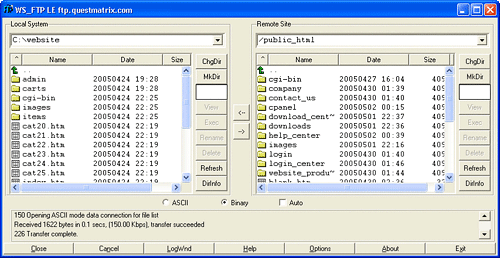
WS_FTP will now display a split screen. The window on the left contains the folders and files on your own computer. Use the green arrow at the top of the window and the scroll bars to browse your system.
Right Window
The window on the right will contain the folders and files contained within your home directory. This is your space on the server. This is where you will place your website will be.
Binary vs. ASCII or Auto
You will see two radio buttons below the display windows, one labeled Binary and one labeled ASCII. There will also be a check box labeled Auto. If you select Auto WS_FTP will automatically apply the correct setting, either Binary or ASCII to the document you are transferring. If you elect not to use the Auto setting please note that it is very important to transfer images in Binary mode. Everything else, HTML documents, cgi scripts etc. should be transferred using ASCII mode. If you fail to set this correctly your files may not appear as they should.
Upload Files
1. Double click on the www directory in the right window to open it. This is the directory you will upload your web pages, files, images etc. into.
2. Highlight a file (or files) from your computer in the left window.
3. Click the right arrow button (->) in the center bar between the windows.
4. You will see a note in the status bar at the bottom when your file transfer is complete.
Download Files
1. Double click on the folder you want to download files into on your computer to open it in the left window.
2. Highlight the file (or files) you wish to download from your website in the right window.
3. Click the left arrow button (<-) in the center bar between the windows.
4. You will see a note in the status bar at the bottom when your file transfer is complete.
Create A New Directory (Folder)
To create a new directory on your website, click on the MkDir button when you are inside the www directory or a subdirectory of the www directory. You will be prompted to enter a name for the new directory. Once you do this, the new directory will be created.
Multiple File Transfer
To transfer more than one file at a time, highlight the first file, and then hold down the Control key on your keyboard to select more. All highlighted files will be transferred when you click on the appropriate arrow button to begin the transfer.
Disconnect
When you are finished transferring your files, click on the Close button at the bottom of the WS_FTP window. This will close your FTP connection. |







 Back
Back