Some ISP's block the SMTP Relay causing outgoing messages to bounce. If this happens to you, follow the instructions below by changing the outgoing SMTP port settings.
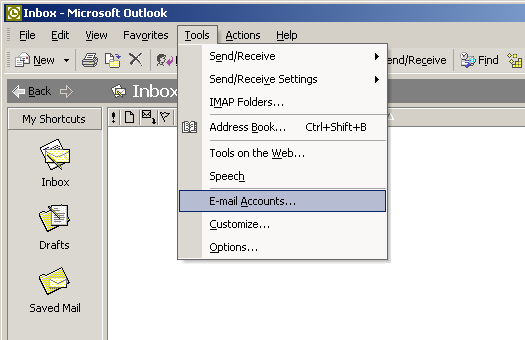
 Open Outlook. Click on Tools, then E-mail Accounts at the top of the window. The E-mail Accounts tab may not show immediately, click on the arrows in the drop down part to expose the rest of the tabs. Open Outlook. Click on Tools, then E-mail Accounts at the top of the window. The E-mail Accounts tab may not show immediately, click on the arrows in the drop down part to expose the rest of the tabs.
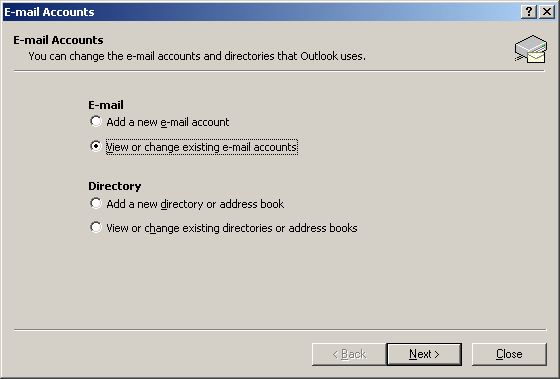
Select “View or change existing e-mail accounts” and click Next.
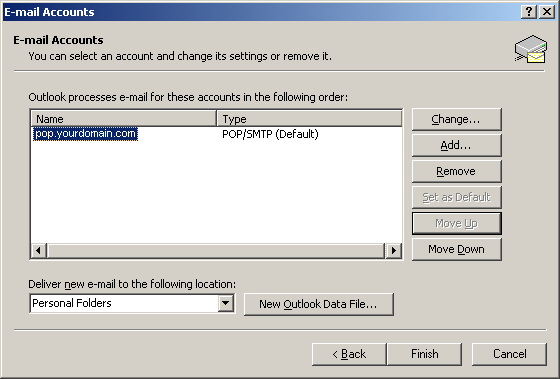
Select your account and click Change.
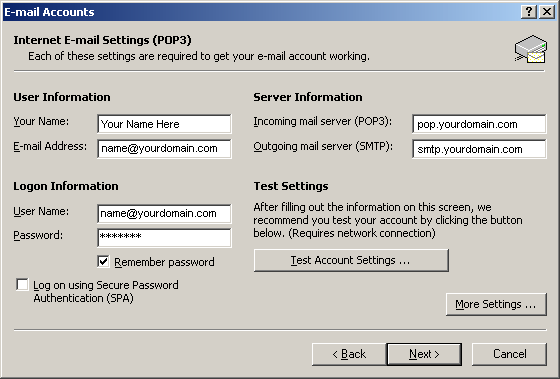
Click More Settings
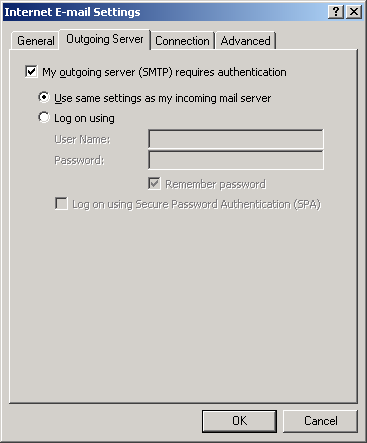
Go to the Outgoing Server tab
Check “My outgoing server (SMTP) requires authentication”
Click “Use same settings as my incoming mail server”
Click OK
Click More Settings again
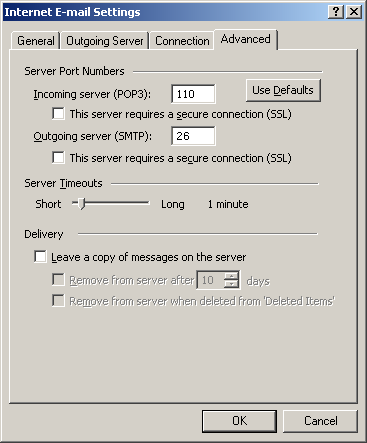
Go to the Advanced tab
Change the Outgoing Server Port setting to 26
Click OK
Click Next
Click Finish and try to send messages again.
If you are still having problems, reboot your computer and try sending email again.
If you are still having problems click here for another alternative.
|







 Back
Back